 Azure
Azure Monitoring
As part of a governance approach, it can be useful to inventory everything you use in the public cloud. And it is often a bit complicated to find everything on the platform, especially when it comes to service-related metrics.
Of course, there is the classic inventory needed to answer simple questions such as:
- How many VMs are currently in use, by OS and SKU?
- How many databases are currently in production?
- How many storage accounts are available?
All of these inventory questions are very easy to answer through Azure Resource Graph.
Now let’s consider the following question:
- What is the total storage capacity across all Azure Storage accounts?
Well, this is where it gets a bit more complicated, because although the metric is available, it is exposed per storage account and, by default, not aggregated.
You can find this answer by looking at each storage account and summing the results of the “Used Capacity” metric.
Otherwise, there is another way through Azure Workbook, which I will show you.
So let’s start by creating a new one (the default one does not suit me in this specific context). We’ll do it through the portal, because building a workbook via infrastructure as code is more of an epic journey than a walk in the park.
Let’s start by adding two filters for subscriptions and resources, as shown below:
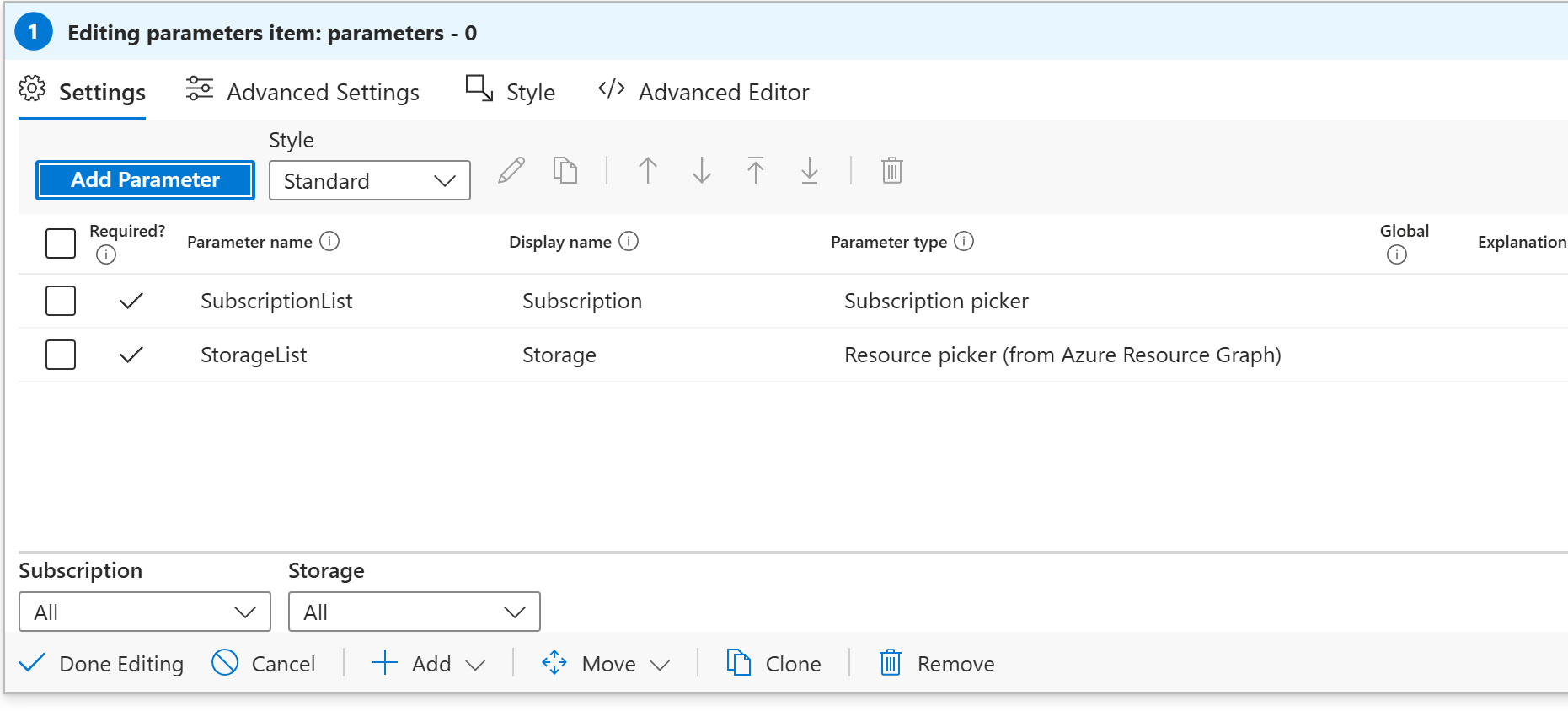
For the different resource pickers, make sure to select “Required” and “Allow multiple selection” for both filters, and include the “All” field.
Then it is possible to run a Kusto query to link resources and metrics.
Let’s start by generating a list with all the values for each storage account:

To make it readable, go to the advanced settings and modify the Value field to change the format to Bytes.
And to get an aggregate of the used capacity, simply sum all values using the Stat visualization and select “Sum” in the aggregation options.

There you go! If you would like me to write more articles related to workbooks, feel free to let me know in the comments.
And of course, here is a link to the workbook I created for this use case: Github link
Comments
Post comment